คู่มือการใช้งาน ChatToon ChatToon User Guide
ระบบจัดการแชทหลายช่องทาง — Facebook · LINE · WhatsApp Multi-channel chat management — Facebook · LINE · WhatsApp
ภาพรวมระบบSystem Overview
ChatToon คือระบบ CRM Chat ที่รวม inbox จากหลาย platform ไว้ในที่เดียว ทีมสามารถรับ ตอบ และติดตามแชทจาก Facebook Messenger, LINE OA และ WhatsApp ได้พร้อมกัน ChatToon is a multi-channel CRM chat platform that consolidates messages from Facebook Messenger, LINE OA, and WhatsApp into a single inbox. Teams can receive, reply, and track all customer conversations in one place.
มีอะไรใหม่ใน v2.2.0 What's new in v2.2.0
อัปเดต 3 Sep 2026 Released 3 Sep 2026
สิทธิ์ผู้ใช้งานUser Roles & Permissions
| Role | เห็น InboxView Inbox | มอบหมายAssign | ดู ReportReports | จัดการ ChannelChannels | จัดการ UserUsers |
|---|---|---|---|---|---|
| Owner | ทุกกลุ่ม ทุกแชทEvery group, every chat | ✅✅ | ✅ | ✅ | ✅✅ |
| Super Admin | ทุกกลุ่ม ทุกแชทEvery group, every chat | ✅✅ | ✅ | ✅ | ✅ ยกเว้น Owner✅ except the Owner |
| HR | ไม่เห็นแชทใดเลยNo chats at all | ❌❌ | ❌ | ❌ | ✅ ยกเว้น Owner / Super Admin✅ except Owner / Super Admin |
| Condo Manager | ทุกแชทของกลุ่มคอนโดEvery chat on the condo desk | ✅✅ | ✅ | ❌ | ✅ คนในกลุ่มเดียวกัน ยกเว้น Owner✅ people on the same desk, except the Owner |
| Condo Admin | ทุกแชทของกลุ่มคอนโดEvery chat on the condo desk | ✅ ให้ Sale ได้ทุกคน และดึงกลับได้✅ to any salesperson, and takes it back | ❌ | ❌ | ❌❌ |
| Condo Team Leader | แชทของคนใน Sub group ตัวเองChats given to their own sub-group | เฉพาะให้ SupportTo Support only | ❌ | ❌ | ❌❌ |
| Sale (Condo) | เฉพาะที่ได้รับมอบหมายOnly what is assigned to them | เฉพาะให้ SupportTo Support only | ❌ | ❌ | ❌❌ |
| Support (CS) | เฉพาะที่ได้รับมอบหมายOnly what is assigned to them | ❌❌ | ❌ | ❌ | ❌❌ |
การเชื่อมต่อ ChannelChannel Setup
ไปที่ Settings → Channels → + New Channel เลือกประเภทที่ต้องการ Go to Settings → Channels → + New Channel and select the channel type
Facebook Messenger
LINE Official Account
WhatsApp Business
Inbox
หน้ารวมแชทจากทุก platform เรียงลำดับจากงานที่มอบหมายให้ตัวเองก่อน ตามด้วยเวลาล่าสุด Unified chat inbox from all platforms. Your assigned conversations appear first, followed by most recent.
กรองและค้นหาFilter & Search
- แท็บ: All / Open / Waiting / Resolved — กรองตามสถานะTabs: All / Open / Waiting / Resolved — filter by status
- ปุ่ม channel: All / LINE / Messenger / WhatsApp — กรองตาม platformChannel buttons: All / LINE / Messenger / WhatsApp — filter by platform
- ช่องค้นหา: ค้นหาจากชื่อลูกค้าหรือข้อความSearch box: search by customer name or message content
- แชทที่ได้รับมอบหมาย: badge กระพริบสีม่วง (ของตัวเอง) / สีส้ม (ของคนอื่น)Assigned chats: purple pulsing badge (yours) / orange badge (others')
มอบหมายงาน (Assignment)Assignment
- เปิดแชท → กดปุ่ม Overview (ด้านขวา) → Assigned To → เลือก agentOpen chat → Click Overview toggle (right side) → Assigned To → Select agent
- ทุก role สามารถมอบหมายได้All roles can assign conversations
- ผู้รับงานได้รับ notification bell ทันทีAssignee receives bell notification immediately
- Admin/Owner เห็น assignment log ว่าใครมอบหมายให้ใคร เมื่อไหร่Admin/Owner can view the full assignment log (who assigned to whom, when)
สถานะ ConversationConversation Status
- Open — แชทที่ยังดำเนินอยู่Active conversation
- Waiting — รอการตอบกลับจากลูกค้าWaiting for customer reply
- Resolved — ปิดจบแล้ว (แชทจะเป็นโทนสีเทา)Closed (chat turns grey)
Notes
- เปิดแชท → Overview → Notes → พิมพ์ข้อความ → Add NoteOpen chat → Overview → Notes → Type → Add Note
- Notes เป็นข้อมูลภายใน — ลูกค้าไม่เห็นNotes are internal only — customers cannot see them
- แสดงชื่อผู้บันทึกและวันเวลาShows author name and timestamp
- ดูได้ทั้งจาก Inbox และหน้า Customer ProfileVisible from both Inbox and Customer Profile page
ลูกค้า (Customers)Customers
- ลูกค้าถูกสร้างอัตโนมัติเมื่อส่งข้อความเข้ามาครั้งแรกCustomers are created automatically when they first send a message
- แก้ไข Display Name, Email, Phone, Country ได้จาก Customer ProfileEdit Display Name, Email, Phone, Country from Customer Profile
- ดู Conversation History — ลูกค้า 1 คนมีแชทจากหลาย platform ได้View full conversation history — one customer can have chats from multiple platforms
- บันทึก Notes ส่วนตัวเกี่ยวกับลูกค้า (ไม่ขึ้นกับ conversation)Add personal notes about a customer (independent of any conversation)
Timeline
ปฏิทินแบบ calendar grid สำหรับวางแผนงานของทีม สามารถ link กับแชทของลูกค้าได้ Calendar-style task planner for teams. Tasks can be linked to customer conversations.
การสร้างงานCreating Tasks
การจัดการงานTask Actions
| Finished ✓ | ปิดงาน + บันทึก feedbackClose task + record feedback |
| Edit | แก้ไขชื่อ รายละเอียด วันที่ ผู้รับผิดชอบEdit name, details, dates, assignee |
| Delete | ลบออกจาก TimelineRemove from Timeline |
Broadcasts
ส่งข้อความหาลูกค้าหลายคนพร้อมกัน เหมาะสำหรับแจ้งข่าวสาร โปรโมชั่น หรือติดตามงาน Send messages to multiple customers at once. Ideal for announcements, promotions, or follow-ups.
- เลือก Channel และกลุ่มลูกค้าที่ต้องการส่งSelect channel and target customer group
- กรองลูกค้าด้วย Tag หรือ ChannelFilter customers by Tag or Channel
- ดูสถิติการส่ง: สำเร็จ / ล้มเหลวView delivery stats: success / failed
รายงาน (Reports)Reports
Admin, Manager, Owner เท่านั้นAvailable to Admin, Manager, Owner only
- Conversation Summary: จำนวนแชท Open/Resolved/Waiting แบบ line chart รายวันDaily Open/Resolved/Waiting counts as line chart
- Message Volume: ปริมาณข้อความ customer vs agent แบบ stacked barMessage volume customer vs agent as stacked bar
- Channel Breakdown: สัดส่วน Facebook / LINE / WhatsApp แบบ pie chartFacebook / LINE / WhatsApp share as pie chart
- Team Performance: สถิติรายบุคคล — จำนวนแชท, % Resolved, breakdown ต่อ channelPer-agent stats — conversation count, % Resolved, per-channel breakdown
ตั้งค่า (Settings)Settings
กลุ่ม / ทีมTeams
- สร้างทีมได้ใน Settings → Teams → + New TeamCreate teams at Settings → Teams → + New Team
- แต่ละทีมมี invite link — ส่งให้สมาชิก Login ด้วย Google จะเข้าทีมอัตโนมัติEach team has an invite link — members click it and log in with Google to join automatically
- กำหนด channel ให้ทีมใน Settings → Teams → เลือกทีม → ChannelsAssign channels to teams in Settings → Teams → Select team → Channels
จัดการผู้ใช้User Management
- เปลี่ยน Role ได้ทันทีจาก dropdown ในรายการ UserChange role instantly via dropdown in the User list
- Deactivate/Activate User ได้จากปุ่มด้านขวาDeactivate/Activate users from the action button
- Last Seen: แสดงว่า user เปิดใช้งานล่าสุดเมื่อไหร่Last Seen: shows when user was last active
สถานะ CustomCustom Statuses
- Admin สร้างสถานะ custom ได้ใน Settings → StatusesAdmins create custom statuses at Settings → Statuses
- ตัวอย่าง: "รอสถานทูต", "ส่งเอกสารแล้ว", "รอชำระเงิน"Examples: "Waiting Embassy", "Documents Sent", "Pending Payment"
- ใช้สีที่กำหนดเองได้ — แสดงใน Inbox list และ ReportCustom colors — visible in Inbox list and Reports
ปักหมุดข้อความPinning messages
เลื่อนเมาส์ไปที่ข้อความใดก็ได้ในแชท จะเห็นปุ่มหมุดเล็ก ๆ ข้างฟอง กดเพื่อปักหมุด ข้อความที่ปักไว้จะขึ้นในหัวข้อ “ปักหมุด” ของแถบขวา และปุ่มหมุดจะติดสีค้างไว้ให้เห็นว่าปักแล้ว กดปุ่มเดิมซ้ำอีกครั้งเพื่อยกเลิก Hover any message to reveal a small pin beside the bubble. Pinned messages appear under “Pinned” in the right panel, and the pin stays lit so you can see which ones are pinned. Press it again to unpin.
ส่งรูปและไฟล์Sending images & files
แนบรูปได้สามทาง — กดปุ่มรูปเพื่อเลือกไฟล์, กด Ctrl+V วางรูปจากคลิปบอร์ดลงในช่องพิมพ์ (สะดวกเวลาแคปหน้าจอ), หรือลากไฟล์มาวางบนหน้าแชท ทุกทางจะขึ้นตัวอย่างให้ดูก่อน ลบทีละรูปได้ แล้วกดส่งทีเดียว Three ways to attach an image — the picture button, Ctrl+V to paste from the clipboard (handy for screenshots), or dragging a file onto the chat. All three show a preview first, let you remove images one by one, and send together.
ชนิดไฟล์ที่รองรับSupported formats
JPG · PNG · GIF · WebP · BMP · AVIF · HEIC (รูปจาก iPhone จะถูกแปลงเป็น JPG ให้อัตโนมัติ) และเอกสาร PDF · Word · Excel · PowerPoint · CSV · ZIP JPG · PNG · GIF · WebP · BMP · AVIF · HEIC (iPhone photos are converted to JPG automatically), plus PDF · Word · Excel · PowerPoint · CSV · ZIP documents.
คำที่ใช้บ่อยSaved replies
ข้อความสำเร็จรูปของทั้งบริษัท ใช้ร่วมกันทุกคน — เก็บคำตอบมาตรฐานไว้ที่เดียว ไม่ต้องพิมพ์ซ้ำและไม่ตอบไม่ตรงกัน Standard answers shared by the whole workspace — write them once, so nobody retypes them and everyone answers the same way.
จัดการ (เมนู “คำที่ใช้บ่อย” ในแถบซ้าย)Managing them (“Saved replies” in the sidebar)
เรียกใช้ตอนแชทUsing them in a chat
- กดไอคอนคำพูดข้างช่องพิมพ์ แล้วเลือกจากรายการPress the quote icon beside the message box and pick one.
- หรือพิมพ์ 2 ตัวอักษรขึ้นไป ระบบจะเสนอคำที่ตรงขึ้นมาเหนือช่องพิมพ์ — Tab เติม · ↑↓ เลือก · Esc ปิดOr type two characters and matching replies appear above the box — Tab to fill, ↑↓ to choose, Esc to dismiss.
- พิมพ์
/นำหน้าเพื่อดูทั้งหมดType/to list them all.
โควตาข้อความ LINELINE message quota
LINE จำกัดจำนวนข้อความที่ส่งออกได้ต่อเดือนตามแพ็กเกจของบัญชี พอโควตาหมด LINE จะปฏิเสธการส่งทันที ระบบจึงแสดงยอดคงเหลือไว้ให้เห็นตลอด LINE caps how many messages an account may send each month. Once the cap is spent LINE refuses further sends, so the remaining balance is kept in view.
ดูได้ที่ไหนWhere to see it
- แถบบนสุด — ป้ายตัวเลข คงเหลือ / ทั้งหมด เปลี่ยนเป็นสีเหลืองเมื่อเหลือต่ำกว่า 20% และแดงเมื่อต่ำกว่า 5% กดเพื่อดูรายละเอียดThe top bar — a remaining / total pill that turns amber under 20% and red under 5%. Click it for the breakdown.
- หน้าแดชบอร์ด · สถิติพนักงาน · บรอดแคสต์ — การ์ดสรุปพร้อมแถบความคืบหน้าDashboard, Agent stats and Broadcasts — a summary card with a progress bar.
- หน้าสถิติพนักงาน มีตารางแยกว่าใครใช้ไปเท่าไหร่Agent stats also breaks it down per person.
นับยังไงHow it is counted
ตอบฟรีภายใน 55 วินาทีFree replies within 55 seconds
เมื่อลูกค้าทักเข้ามา LINE จะให้สิทธิ์ตอบกลับ ฟรี ในช่วงเวลาสั้น ๆ ไม่กินโควตาเลย ระบบใช้สิทธิ์นี้ให้อัตโนมัติถ้าตอบทัน และแสดงป้ายเขียว “ตอบฟรีอีก 0:xx” ใต้ช่องพิมพ์ นับถอยหลังให้เห็น พอเหลือต่ำกว่า 10 วินาทีจะเปลี่ยนเป็นสีเหลือง When a customer writes in, LINE allows a free reply for a short window that costs no quota. The system uses it automatically if you answer in time, and shows a green “free reply 0:xx” badge under the message box, counting down — amber under ten seconds.
เฉพาะฝั่งคอนโด (Scancondo)Only on the condo desk (Scancondo)
ฝั่งคอนโดแจกงาน: Condo Admin มอบหมายแชทให้ Sale ทีละเคส Sale เห็นเฉพาะเคสที่ได้รับ สี่อย่างด้านล่างนี้มีเฉพาะฝั่งนี้ The condo desk hands its chats out: a Condo Admin gives each one to a salesperson, who sees only what they were given. These four things exist on this desk alone.
Sub group (ทีมย่อย)(teams)
- จัดการที่เมนู ทีมย่อย (Sub group) หรือปุ่ม "จัดการ Sub group" ในหน้าสมาชิก — สร้าง แก้ชื่อ ลบ และติ๊กเลือกสมาชิกแล้วกดบันทึกManaged under Sub groups in the menu, or the button on the members page — make, rename, remove, tick the members and save.
- คนหนึ่งอยู่ได้ Sub group เดียว — ติ๊กคนที่อยู่ทีมอื่นแล้วบันทึก เขาจะย้ายมาทีมนี้One person, one sub-group — tick somebody from another team and save, and they move.
- Condo Team Leader เห็นแชทที่มอบหมายให้คนใน Sub group ของตัวเอง และรับ Sale ที่ยังไม่มีทีมเข้าทีมตัวเองได้A Condo Team Leader sees the chats given to their own sub-group, and may take in a salesperson who has no team.
- ผู้จัดการได้ทั้งหมด: Owner, Super Admin, HR, Condo Manager, Condo AdminManaged by: Owner, Super Admin, HR, Condo Manager, Condo Admin.
ลูกตุ้มสี (ชนิดของเคส)Case marks (the kind of case)
- ตุ่มสีหน้าชื่อลูกค้า ทั้งในรายการแชทและบนหัวแชท บอกว่าเคสเป็นชนิดไหน เพื่อให้ Sale รู้ว่าควรรับเคสไหนก่อนA coloured dot before the customer's name, in the list and at the head of the chat, says what kind of case it is.
- ใส่ / เปลี่ยน / เอาออก จากแผงขวาของแชท — ทำได้โดย Owner, Super Admin, Condo Manager, Condo AdminSet, changed or removed from the chat's right panel — by Owner, Super Admin, Condo Manager, Condo Admin.
- แถวตุ่มสีใต้ตัวกรองของรายการแชท: กดสีไหนเห็นเฉพาะแชทสีนั้น กดซ้ำเพื่อดูทั้งหมด ชี้ค้างเพื่อดูความหมายThe row of dots under the list's filters: press a colour for only those chats, press again for all; hover for its meaning.
- รายการสีและความหมายแก้ได้ที่เมนู สถานะ / ประเภทงาน / ลูกตุ้มสี (เฉพาะ Owner / Super Admin)The colours and their meanings are kept under Statuses / Types / Marks (Owner and Super Admin only).
รายงานการมอบเคส
- เมนู รายงานการมอบเคส (เฉพาะ Owner / Super Admin): Sale แต่ละคนได้รับเคสสีไหนกี่เคส และใครมอบสีไหนให้ใครUnder Cases handed out (Owner and Super Admin only): how many cases of each colour each salesperson was given, and who gave which colour to whom.
- เลือกดู วันนี้ / สัปดาห์นี้ / เดือนนี้ / ปีนี้ หรือกำหนดช่วงวันที่เอง · กดหัวคอลัมน์เพื่อเรียง · ช่องสีเหลืองคือให้คนหนึ่งสีหนึ่งมากกว่าค่าเฉลี่ยของผู้มอบคนนั้น ไว้ดูเท่านั้นToday, this week, this month, this year, or any span of days · press a heading to sort · a yellow cell is well above that giver's own average, to look at.
WhatsApp ของฝั่งคอนโดon the condo desk
บริการหลังการขาย (Scancondo Service)After-sales (Scancondo Service)
แผนกของทีมบริการหลังการขาย ใช้ไลน์ @scancondoservice (https://lin.ee/Nl0eVOQ) ดูแลผู้เช่าและเจ้าของห้องหลังปิดงานเช่า — ค่าเช่า สัญญาครบ การต่อสัญญา · เห็นได้เฉพาะ Condo Admin, Sale Assistant (เฉพาะงานที่ได้รับมอบหมาย), Owner และ Super Admin · เซลล์คอนโดไม่เห็นแผนกนี้ The after-sales team's desk, on LINE @scancondoservice (https://lin.ee/Nl0eVOQ): tenants and room owners after a rental closes — rent, lease ends, renewals. Seen by Condo Admins, Sale Assistants (their own work only), the Owner and Super Admins; condo salespeople do not see it.
1. เซลล์: ส่งต่อทีมบริการ (เมื่อปิดงานเช่า)1. The salesperson hands the lease over
2. ทีมบริการ: การ์ดสัญญาและกลุ่มไลน์2. The service team: the lease card and its LINE group
IDC04-0044) อย่างเดียว 1 ข้อความในกลุ่ม → ระบบตอบในกลุ่มว่าผูกแล้ว (หรือเลือกกลุ่มเองในการ์ด)IDC04-0044) on its own, once → the group is told it is tied (or pick the group on the card).3. การเตือนอัตโนมัติ3. Reminders, by themselves
- ผูกกลุ่มแล้ว + กรอกวันจ่าย / วันหมดสัญญา → ระบบสร้างการเตือนให้เอง: ค่าเช่า เตือน 3 และ 1 วันก่อนครบ (ทุกเดือน) · สัญญาครบ แจ้งพนักงาน 45 วันก่อน (ให้โทรถามต่อสัญญา) และส่งถึงผู้เช่า 30 วันก่อนGroup tied + dates filled → reminders made by themselves: rent 3 and 1 days ahead, monthly · lease end staff 45 days ahead (to call), tenant 30.
- ผู้เช่าจ่ายแล้ว กด จ่ายแล้ว (ในแชท / การ์ด / หน้างานเตือนลูกค้า) → งวดนั้นหยุดเตือน เลื่อนไปงวดหน้า · เลยกำหนดไม่มีใครกด → ขึ้น ค้างจ่ายPaid → press จ่ายแล้ว; that month stops, on to the next. Unpressed past the date → ค้างจ่าย (unpaid).
- ผู้เช่าออกก่อนครบสัญญา กด หยุดเตือนA tenant leaving early → หยุดเตือน (pause).
- วันเตือนและข้อความแก้ได้ที่ ตั้งค่าการเตือนลูกค้า (Owner / Super Admin / Manager) · ประวัติการส่งดูที่ งานเตือนลูกค้า แท็บ "ประวัติการส่ง"Days and words are set on the reminder settings page; what went out is under งานเตือนลูกค้า → sent.
4. โทรถามต่อสัญญา4. The renewal call
- ทะเบียนสัญญา → ตัวกรอง ใกล้หมดสัญญา (45 วัน) → เปิดการ์ด → โทรถามต่อสัญญา → เลือกผลRegister → ending within 45 days → the card → record the call.
- ต่อสัญญา ใส่วันหมดใหม่ (การเตือนเลื่อนเอง) · จะเช่าที่อื่น ส่งลิงก์ @scancondo ให้ลูกค้าในกลุ่ม + สร้างลีดให้เซลล์เช่า · สนใจซื้อ สร้างลีดให้เซลล์ขาย · ย้ายออก หยุดเตือนทั้งหมดRenew: new end date · elsewhere: the @scancondo link to the group + a rent lead · buy: a sale lead · moving out: reminders stop.
- Condo Manager / Condo Admin มอบลีดให้เซลล์ที่หน้า ลีดจากทีมบริการ (กลุ่ม Scancondo) — เซลล์ได้แจ้งเตือนCondo Manager / Admin hand leads to a salesperson on ลีดจากทีมบริการ; the salesperson is told.
5. รายงาน5. Reports
- รายงาน Service V6 — รอบเดือน 26–25 แบบ V6: แชทที่ตอบ / ข้อความที่ส่ง รายคนรายวัน · สัญญาเข้า ปิดงาน ส่งกลับ · การเตือนและงวดค่าเช่า · การต่อสัญญาและลีด · กด PDF ทีละตารางService report V6 — the 26–25 month: each person's chats and messages by day, hand-overs, reminders and rent, renewals and leads; a PDF a table.
- รายงานบริการหลังการขาย — สรุปรายเดือน: สัญญาใกล้หมด 30/45/60/90 วัน · อัตราต่อสัญญา · ลีด · ใครจ่ายช้าAfter-sales report — leases ending, renewal rate, leads, late payers.
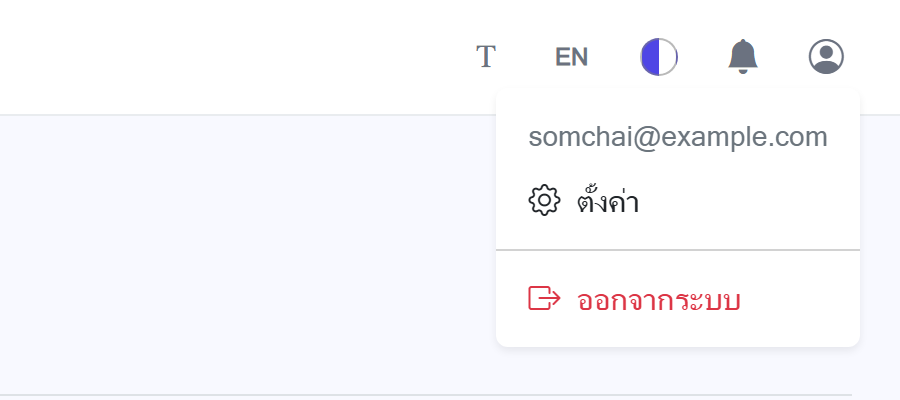
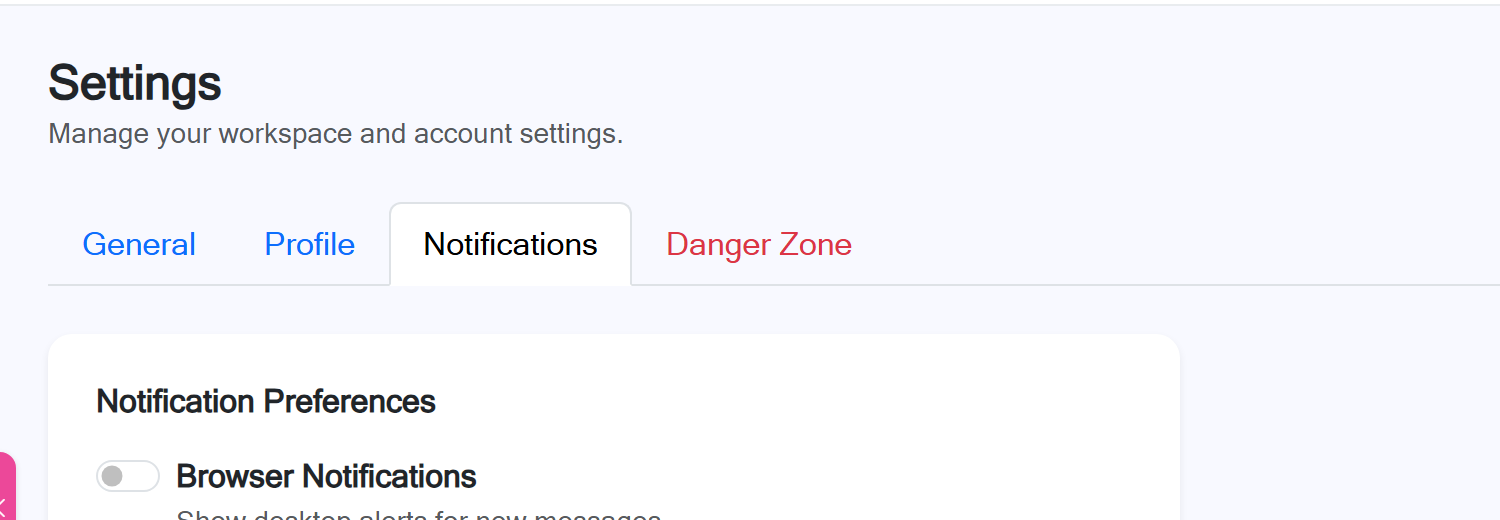
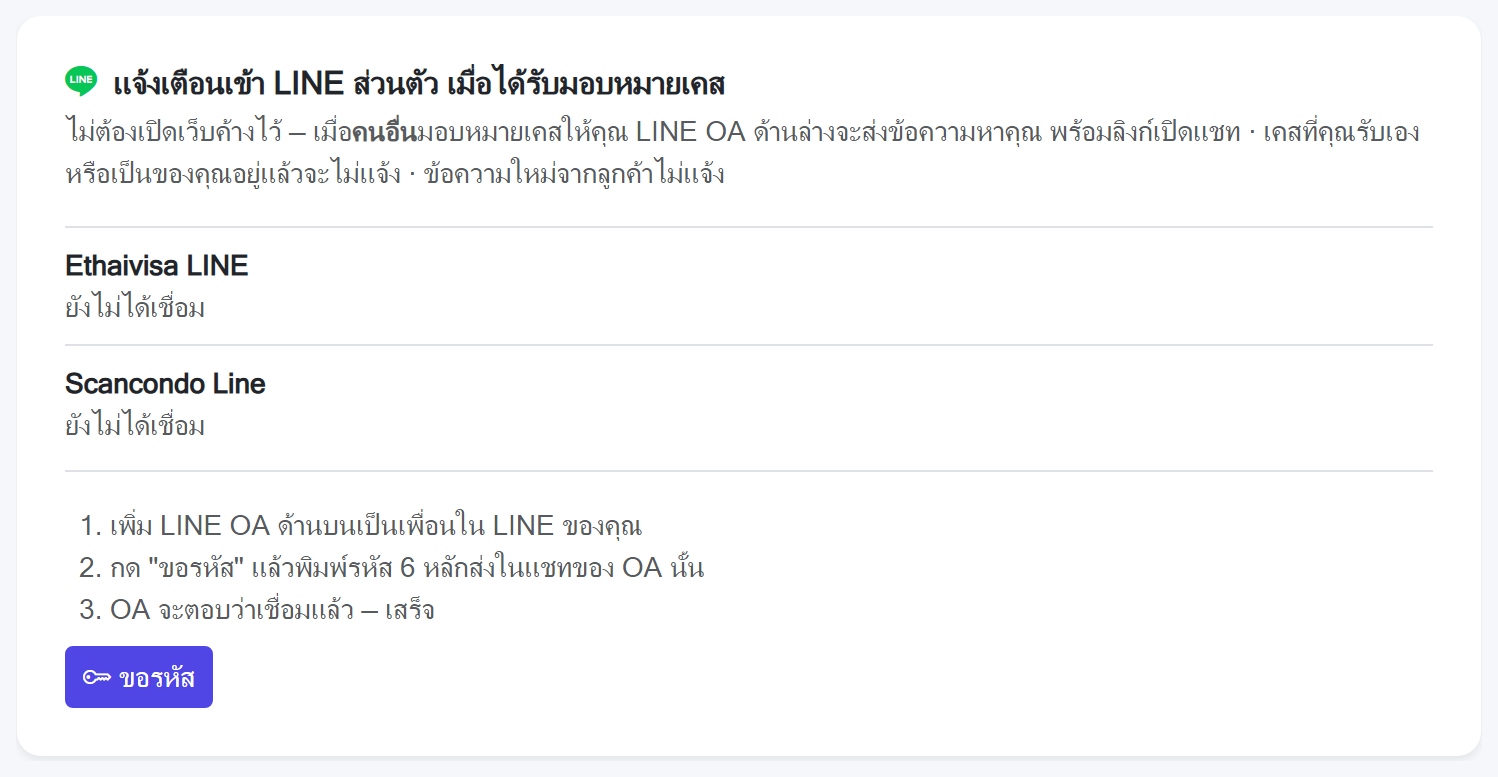
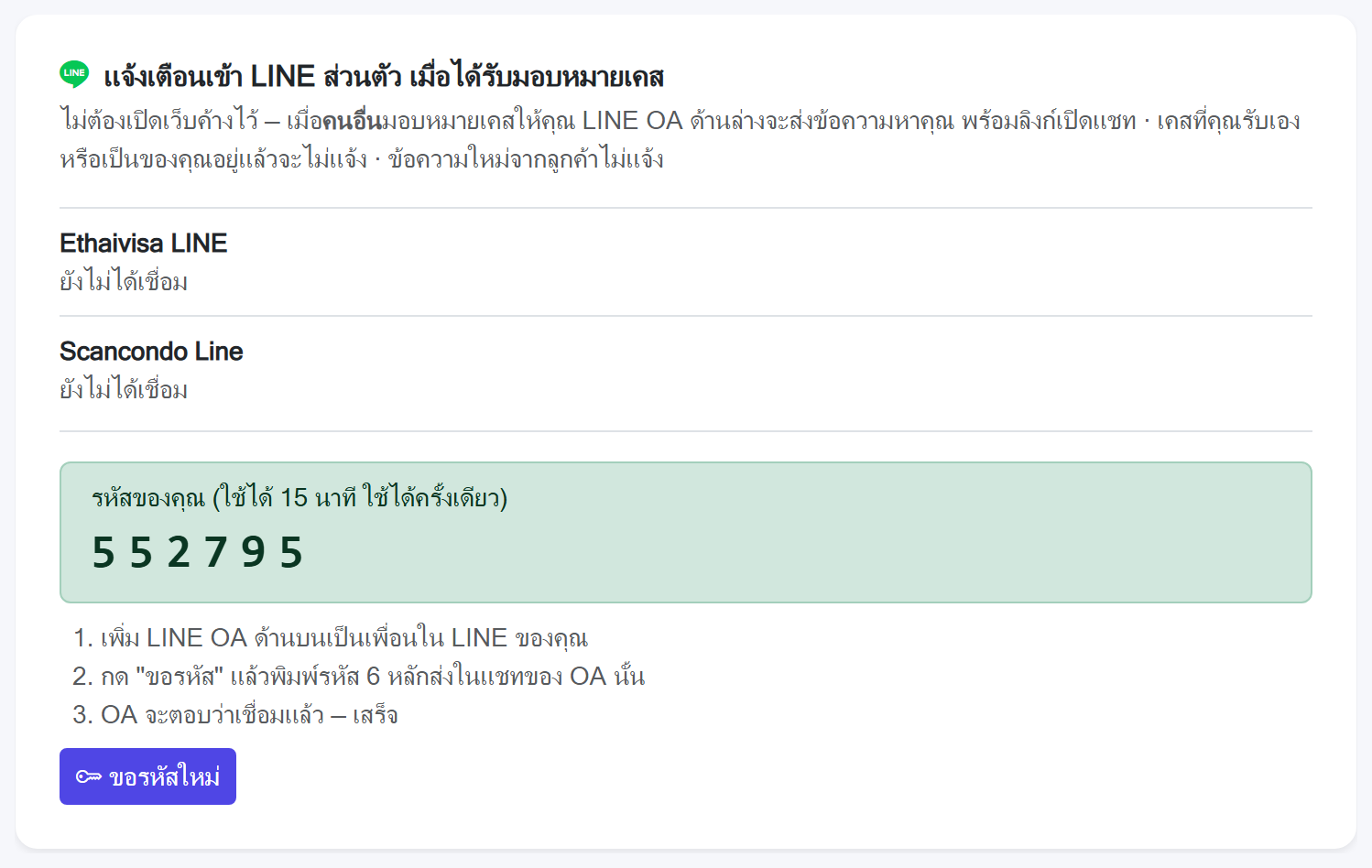
แจ้งเตือนเข้า LINE ส่วนตัว เมื่อได้รับมอบหมายเคสNotices on your own LINE when a case is given to you
ทำครั้งเดียว ประมาณ 2 นาที หลังจากนั้นไม่ต้องเปิดเว็บค้างไว้ — เมื่อคนอื่นมอบหมายเคสให้คุณ LINE OA ของบริษัทจะส่งข้อความเข้า LINE ของคุณ บอกชื่อลูกค้า ช่องทาง ใครมอบหมาย และมีลิงก์กดเปิดแชทนั้น มีแต่คุณที่เห็นข้อความนี้ Set it up once, in about two minutes, and the site no longer has to stay open: when somebody else gives you a case, the company's LINE account messages your own LINE with the customer's name, the channel, who gave it, and a link that opens the chat. Only you see it.
ดาวน์โหลดคู่มือนี้เป็น PDF (ฝั่งคอนโด · Scancondo) Download these steps as a PDF (Scancondo)วิธีตั้งค่า 7 ขั้นSeven steps
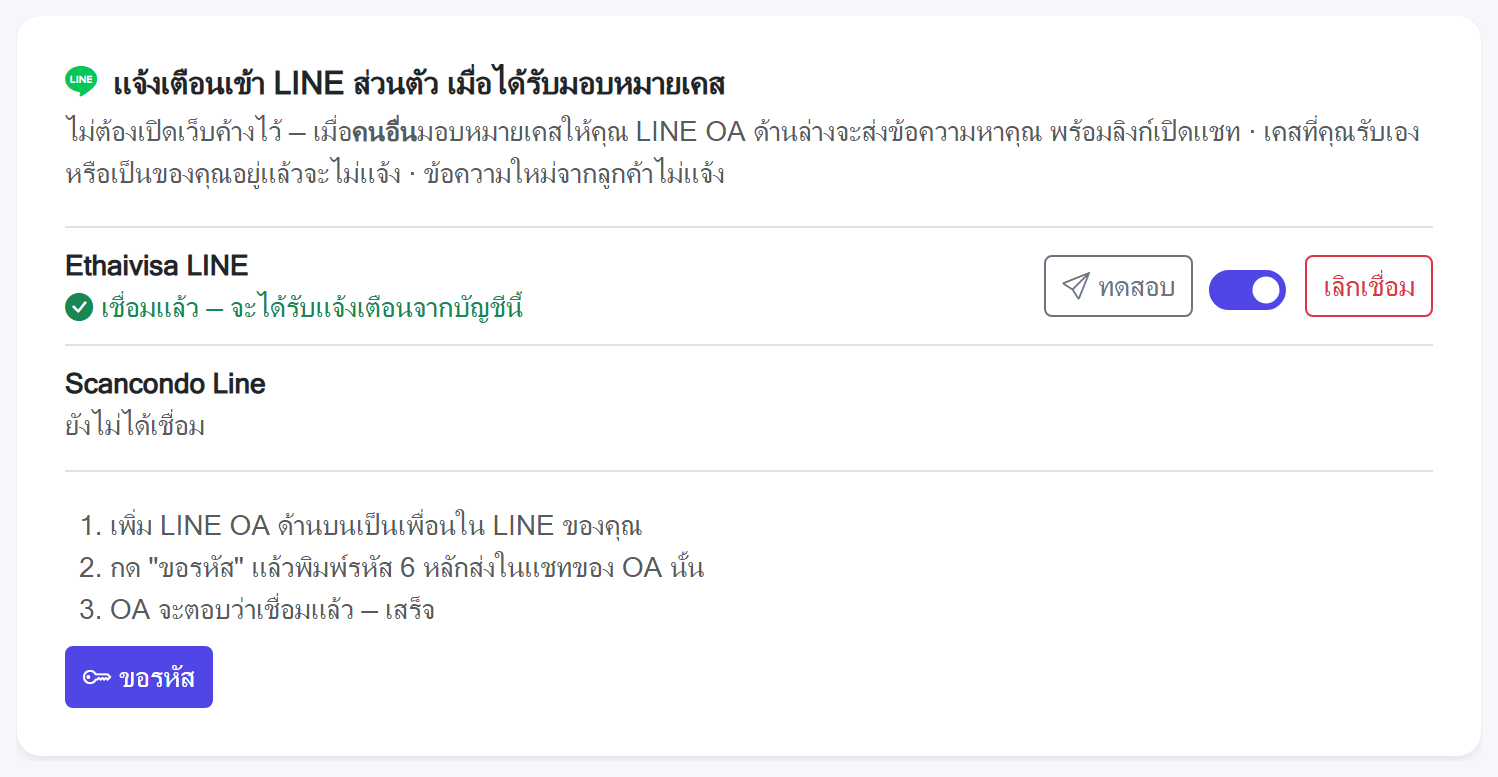
ปุ่มในกล่องหลังเชื่อมแล้วThe controls once linked
- ทดสอบ — ส่งข้อความทดสอบเข้า LINE ของคุณทันที ถ้า LINE ปฏิเสธ จะมีแถบสีแดงบอกเหตุผลทดสอบ (test) — sends yourself a message now; if LINE refuses, a red bar says why.
- สวิตช์เปิด / ปิด — ปิดแจ้งเตือนชั่วคราวโดยไม่ต้องเชื่อมใหม่ เช่น ช่วงหยุดงานThe switch — turns notices off for a while without unlinking, for a day off.
- เลิกเชื่อม — ตัดการเชื่อม ถ้าจะกลับมาใช้ต้องขอรหัสและส่งใหม่เลิกเชื่อม (unlink) — removes the link; coming back means a new code.
ถ้าทำแล้วไม่ได้If it does not work
- ไม่เห็นกล่อง — ต้องอยู่แท็บ Notifications แล้วเลื่อนลง ถ้ายังไม่เห็น กด Ctrl + F5No box — be on the Notifications tab and scroll down; failing that, press Ctrl + F5.
- พิมพ์รหัสแล้ว OA ไม่ตอบ / ยังขึ้น "ยังไม่ได้เชื่อม" — รหัสอาจเกิน 15 นาที หรือส่งผิด OA หรือพิมพ์เกิน 6 หลัก กด "ขอรหัสใหม่" แล้วส่งใหม่The account does not reply, or it still says not linked — the code may be past 15 minutes, sent to the wrong account, or not exactly six digits. Ask for a new one and send again.
- กด "ทดสอบ" แล้วขึ้นแถบสีแดง — แจ้งผู้ดูแลระบบพร้อมข้อความในแถบนั้นThe test shows a red bar — tell an administrator what it says.
ใช้งานบนมือถือและแท็บเล็ตOn mobile & tablet
- บนมือถือจะเห็นทีละหน้า — แตะรายชื่อแชทเพื่อเปิดห้อง แล้วกดลูกศรมุมซ้ายบน (หรือปุ่ม Back ของเบราว์เซอร์) เพื่อกลับA phone shows one pane at a time — tap a conversation to open it, then the arrow at the top left (or the browser's Back) to return.
- แถบเครื่องมือกรองเลื่อนซ้าย-ขวาได้ ไม่ตกบรรทัดThe filter strip scrolls sideways rather than wrapping.
- แถบขวา (โน้ต / มอบหมาย / ประเภทงาน) จะเลื่อนทับเข้ามาเมื่อเปิด แตะพื้นหลังเพื่อปิดThe right panel slides over the chat when opened; tap the backdrop to close it.
- บนจอคอมพิวเตอร์ ซ่อนได้ทั้งเมนูซ้ายและรายชื่อแชท ด้วยปุ่มลูกศรที่ขอบ เพื่อให้ช่องแชทเต็มจอOn a desktop, both the sidebar and the conversation list fold away with the arrow handles at their edges, giving the chat the full window.
คำถามที่พบบ่อยFAQ
• เพิ่ม: ส่ง Invite Link ให้ทีม → เขา Login ด้วย Google จะเข้า workspace อัตโนมัติ
• สิทธิ์: เปลี่ยน Role ในตารางรายชื่อ (owner / admin / manager / sale-visa / sale-condo / customer-service-visa / support)
• ลบ: กดปุ่ม "ปิดใช้งาน" — เข้าระบบไม่ได้อีก แต่ข้อมูลแชทเดิมยังอยู่ครบ
• Owner / Super Admin / Manager / Sale (Visa) เห็นทุกแชทในกลุ่มของตัวเอง ไม่ว่าจะมอบหมายให้ใคร หรือยังไม่มอบหมาย
• Sale (Condo) / Customer Service (Visa) / Support เห็นเฉพาะแชทที่มอบหมายให้ตัวเอง แชทใหม่จะไม่เห็นจนกว่าจะมีคนมอบหมายให้ และถ้ามอบหมายให้คนใหม่ คนเดิมจะไม่เห็นแชทนั้นอีก
• ทุกคนเห็นเฉพาะกลุ่มที่ตัวเองอยู่ ยกเว้น Owner และ Super Admin
• ถ้าอยากให้คนอื่นช่วยดูด้วย → กด "+ เพิ่มคน" ที่หัวแชท
• แชทภายในทีม (แอดมินคุยกันเอง) — ยังไม่มี แต่ให้หลายคนเข้ามาช่วยดูแชทลูกค้าคนเดียวกันได้ผ่านปุ่ม "+ เพิ่มคน" และใช้ Note สื่อสารกันภายในได้
ชื่อเดิมจากแพลตฟอร์มจะยังแสดงเป็นบรรทัดเล็กด้านล่างเสมอ (ไม่หายไป) และค้นหาด้วยชื่อใหม่ได้
ลบ tag: กด ✕ บน tag นั้น
1. พิมพ์ชื่อ tag ในช่อง ค้นหา ด้านบน → เจอทุกแชทที่ติด tag นั้น
2. ใช้ปุ่ม Tag: ทั้งหมด ใต้แถบช่องทาง → เลือก tag ที่ต้องการ
ใช้ร่วมกับแท็บสถานะได้ เช่น เลือกแท็บ "ติดตามงานขาย" + เลือก tag "รอเอกสาร" = เห็นเฉพาะแชทที่ตรงทั้งสองเงื่อนไข
• เปิด (Open) = ยังคุยอยู่ ยังไม่จบงาน — ระบบตั้งให้อัตโนมัติเมื่อมีข้อความใหม่
• ติดตามงานขาย (Follow up) = พักไว้ก่อน รอติดตามทีหลัง
• ปิดงาน (Resolved) = จบงานแล้ว
นอกจากนี้ยังมี สถานะที่ตั้งเอง (เช่น รอส่งเอกสาร, รอสถานทูต) ตั้งได้ที่ Settings → Statuses โดยแยกตามกลุ่ม
ติดต่อทีมงานContact Support
หากติดปัญหาการใช้งานหรือต้องการความช่วยเหลือFor support or feature requests